Set object property value in the C application
In this step you create a text layer in Kanzi Studio and an alias pointing to that text layer, then in the C application you set the value of the property that defines the content shown by the text layer in your Kanzi application.
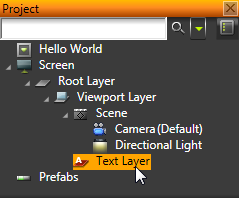
- In Kanzi Studio in the Project right-click the Viewport Layer and select Create > Text Layer.
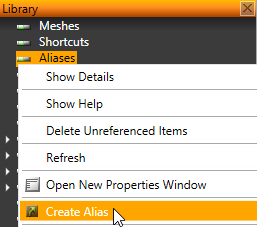
- In the Library right-click Aliases, and select Create Alias.
For example, name the alias TextLayer. In the C application of this project you use the name of the alias to access the text layer.
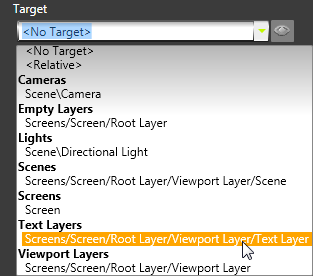
- In the Properties set the Target property to the text layer.
- In Kanzi Studio select > Export KZB Binary.

- In Visual Studio in hello_world.c include headers.
/* Include required headers */
/* Base structure for scene graph nodes. */
#include <user/scene_graph/kzu_object.h>
/* Text layer class. */
#include <user/layers/kzu_text_layer.h>
/* Layer base class. */
#include <user/layers/kzu_layer.h>
/* Fixed property types. */
#include <user/properties/kzu_fixed_properties.h>
- Create a function that first gets the text layer using the alias and then sets the value of the Text property to Hello world!.
To get the alias, use the same name you used for the alias of the text layer in the Kanzi Studio project.
KZ_CALLBACK static kzsError setProperty(struct KzaApplication* application)
{
	kzsError result;
	/* Gets root layer from the scene graph. */
	struct KzuLayer* rootLayer = kzaApplicationGetRootLayer(application);
	/* Gets the alias that points to the text layer in the scene graph. */
	/* Use the same name you used for the alias in the Kanzi Studio project. */
	/* For example, this tutorial uses name TextLayer. */
	struct KzuObjectNode* textLayer = kzuObjectNodeGetRelative(kzuLayerToObjectNode(rootLayer), "#TextLayer");

	/* Sets the property value of the text layer's Text property. */
	result = kzuObjectNodeSetStringProperty(textLayer, KZU_PROPERTY_TYPE_TEXT_LAYER__TEXT, "Hello world!");
	kzsErrorForward(result);

	kzsSuccess();
}
- In the kzApplicationConfigure function call your setProperty function when your Kanzi application loads.
/* Calls the setProperty function when the project is loaded. */
configuration->onProjectLoaded = setProperty;
- In Visual Studio select one of the available debug solution configurations and run your application.
For example, select ES2_IMG_Debug solution configuration.

Function setProperty sets the text layer's Text property to Hello world! so that the text layer shows Hello world! in your Kanzi application.

This is what your hello_world.c looks like when you complete this step.
#include <application/kza_application_interface.h>
#include <application/kza_application.h>

/* Include required headers. */
/* Core logging */
#include <core/debug/kzc_log.h>
/* Base structure for scene graph nodes */
#include <user/scene_graph/kzu_object.h>
/* Text layer class */
#include <user/layers/kzu_text_layer.h>
/* Layer base class */
#include <user/layers/kzu_layer.h>
/* Fixed property types */
#include <user/properties/kzu_fixed_properties.h>

KZ_CALLBACK static kzsError keyInputEventHandler(struct KzaApplication*
	application, const struct KzsInputEventKey* inputData)
{
	enum KzsInputKey button = kzsInputEventKeyGetButton(inputData);

	/* Handle the escape or Q button to exit the application. */
	if (button == KZS_KEY_ESC || button == KZS_KEY_Q)
	{
		kzaApplicationQuit(application);
	}

	kzsSuccess();
}

KZ_CALLBACK static kzsError writeToLog(struct KzaApplication* application)
{
	kzsLog(KZS_LOG_LEVEL_INFO, "Hello world!");

	kzsSuccess();
}

KZ_CALLBACK static kzsError setProperty(struct KzaApplication* application)
{
	kzsError result;
	/* Gets root layer from the scene graph. */
	struct KzuLayer* rootLayer = kzaApplicationGetRootLayer(application);
	/* Gets the alias that points to the text layer in the scene graph. */
	/* Use the same name you used for the alias in the Kanzi Studio project. */
	/* For example, this tutorial uses name TextLayer. */
	struct KzuObjectNode* textLayer = kzuObjectNodeGetRelative(kzuLayerToObjectNode(rootLayer), "#TextLayer");

	// Sets the property value of the text layer's Text property
	result = kzuObjectNodeSetStringProperty(textLayer, KZU_PROPERTY_TYPE_TEXT_LAYER__TEXT, "Hello world!");
	kzsErrorForward(result);

	kzsSuccess();
}

KZ_CALLBACK void kzApplicationConfigure(const struct KzaSystemProperties*
	systemProperties, struct KzaApplicationProperties* configuration)
{
	configuration->memoryPoolSize = 20 * 1024 * 1024;
	configuration->binaryName = "Hello_World.kzb.cfg";

	configuration->onKeyInputEvent = keyInputEventHandler;
	/* Calls the writeToLog function when the project is loaded. */
	configuration->onProjectLoaded = writeToLog;
	/* Calls the setProperty function when the project is loaded. */
	configuration->onProjectLoaded = setProperty;
}
< PREVIOUS STEP
What's next?
In this tutorial you learned how to create a Kanzi Studio project with C application and edited a property of an object you created in Kanzi Studio. Now you can complete a more advanced Kanzi programming tutorial. See Dynamic object generator.
See also
To find out more about what you can create using the Kanzi Engine API, see API reference
To find out more about using aliases, see Aliases.
To learn more about creating Kanzi applications, see Tutorials.
To find out more about Kanzi Studio features, see Working with ....
Open topic with navigation